How to Overclock a GPU in MSI Afterburner
Overclock a GPU in MSI Afterburner step by step: power limit, core, then memory. Our RTX 3080 went from 199 to 212 FPS in Heaven for 51 W more.
On this page (6)
You overclock in MSI Afterburner by raising the power limit, then the core and memory clocks in small steps. On our RTX 3080 that took Heaven from 199 to 212 FPS, about 6%. It also cost 51 W more, so decide if those frames are worth it.
- RTX 3080 FPS in Heaven
- 199 → 212
- Avg power cost, 317 W to 368 W
- +51 W
- Best core offset in Heaven, +150 crashed
- +125 MHz
Every number here comes from one PC: RTX 3080 Founders Edition (NVIDIA's own model), Ryzen 7 5800X3D. Software: NVIDIA driver 621.01, Afterburner 4.6.6. The test is Unigine Heaven, a free GPU benchmark, at 1080p windowed, DirectX 11, Ultra, Extreme tessellation, 8x AA.
We measured on Nov 14, 2026, in two passes. The first stopped at the +150 crash, the second added the memory steps and the long runs. Your chip will land somewhere else, so treat our offsets as a starting point.
Does overclocking a GPU increase FPS?
Yes, but by single digits. Our best setting gave 6.1% more FPS than the stock average.
Overclocking makes the GPU run at higher clocks than the factory set. Three sliders in Afterburner do it:
- Power limit: the wattage cap the card won't cross. Ours sits at 320 W at stock and 370 W at the 115% maximum.
- Core clock: an offset in MHz added to every boost step of the GPU itself.
- Memory clock: an offset for the video memory, the VRAM.
Here's every step in Heaven. Core steps ran in both passes, memory steps in the second. Power and clock come from the second pass:
| Setting | FPS | Average power | Average clock |
|---|---|---|---|
| Stock | 199.3 / 201.1 | 317 W | 1828 MHz |
| Power limit 115% | 202.5 / 202.7 | 366 W | 1849 MHz |
| 206.1 / 206.7 | 368 W | 1894 MHz |
| 206.5 / 207.3 | 368 W | 1906 MHz |
| 207.9 / 208.6 | 368 W | 1931 MHz |
| Crash (both passes) | n/a | n/a |
| Core +125, memory +500 | 210.6 | 367 W | 1931 MHz |
| Core +125, memory +1000 | 211.6 | 368 W | 1915 MHz |
Stock ran between 197.6 and 201.1 FPS over three runs, and the hot run was the lowest. So gaps under about 3.5 FPS are noise. The power limit alone (+3.3 FPS) sits inside it, and core +125 clears it.
Power held the clock back. The card sat on its 370 W cap in every overclocked sample. So +125 MHz raised the average clock by only about 80 MHz (1849 to 1931).
Is 6% worth 51 W? We also ran our undervolt in this session, right after the overclock: 198.8 FPS at 299 W. The overclock gave 6.4% more frames than that for 23% more power.
If you'd rather keep the frames and drop the heat, read our GPU undervolting guide. Its numbers come from an earlier session the same day, with the same Heaven settings.
There it read 190.6 FPS at stock and 190.2 undervolted, at about the same clocks. FPS moved by about 10 between our two sessions. So compare settings inside one session only.
How do you overclock a GPU in MSI Afterburner?
You raise the power limit first, then the core clock in steps, then the memory clock. Run a benchmark after every change.
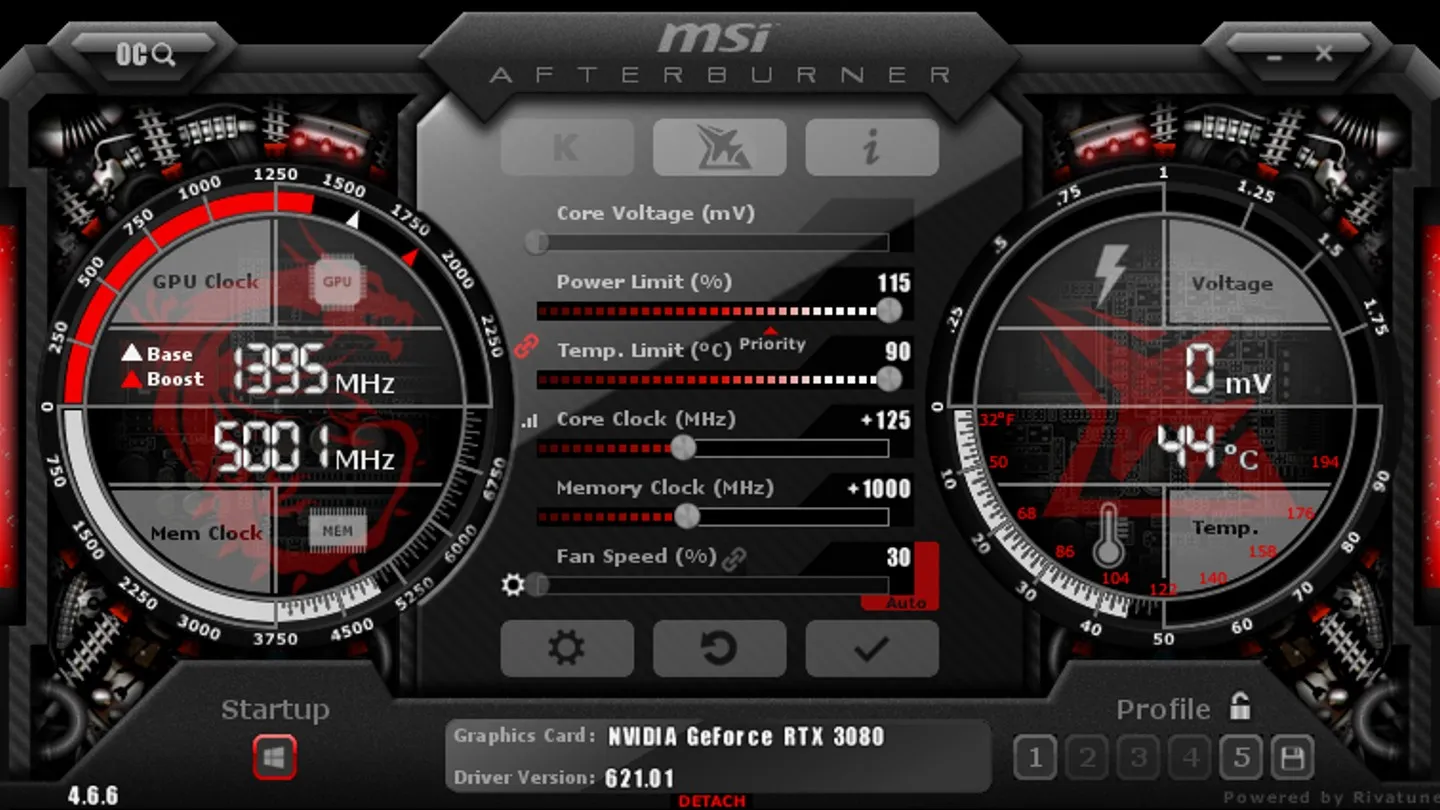
That's our final setting on the sliders, before Apply. The check mark applies it, the round arrow is Reset.
Temp. Limit shows 90 °C there, and we never set it by hand in our runs.
Before you start, close your games and open Heaven or another benchmark that loops. These steps use Afterburner 4.6.6 on Windows:
Run the benchmark at stock and write down the FPS.
Go to Heaven
Drag Power Limit to the maximum, 115% on our Founders Edition, and click Apply.
Go to Afterburner main window
Set Core Clock to +75, click Apply, and run the benchmark again.
Go to Afterburner main window
Add 25 MHz per run until the benchmark crashes or the screen goes black.
Go to Afterburner main window
Go back one step and keep it: ours crashed at +150, so we kept +125.
Go to Afterburner main window
Once the core is set, do the memory and the checks the same way:
Set Memory Clock to +500, click Apply, and run the benchmark.
Go to Afterburner main window
Try +1000 the same way. Keep it only if FPS went up and nothing crashed.
Go to Afterburner main window
Loop the benchmark for about 20 minutes on your final setting.
Go to Heaven
Open Event Viewer from the Start search, then Windows Logs > System. Look for nvlddmkm errors (NVIDIA's display driver).
Go to Event Viewer
Click Save, then slot 2 while it flashes. Slot 1 can keep your undervolt.
Go to Afterburner main window
Play your heaviest game for hours. Click Startup only if nothing crashed.
Go to Your game, then Afterburner
Leave Core Voltage alone. Afterburner locks it by default for safety, and you don't need it for any of this.
Should you overclock the core or the memory first?
Core first, because it gave the most on our card. Then add memory on top, one setting at a time, so you know which one crashed.
Here's what each change added, as the average of our runs:
| Power limit 115% 199.3 to 202.6 | 3.3 |
|---|---|
| Core +125 202.6 to 208.2 | 5.6 |
| Memory +1000 208.2 to 211.6 | 3.4 |
The core bar is highlighted because it's the biggest single gain. Memory added 3.4 FPS at +1000 and 2.3 FPS at +500.
A memory step that doesn't crash isn't automatically faster. Keep it only if the FPS goes up. On ours +1000 still beat +500, 211.6 against 210.6 FPS.
How do you know your GPU overclock is stable?
It's stable when long benchmark loops and hours of your heaviest games bring no crash. One clean benchmark run proves little.
Watch for these signs:
- Screen goes black for a moment, then comes back: the GPU hung for 2 seconds, and Windows restarted the driver. That's an unstable overclock.
- The benchmark or game closes with no message: open Event Viewer from the Start search, then Windows Logs > System. An nvlddmkm error means the NVIDIA driver crashed.
- Flickering dots, stripes or odd colors on screen: artifacts, rendering errors from an offset set too high.
Any one of these means you go back a step.
Our +150 MHz step failed both passes within 20 seconds of Heaven loading. The driver reset, Heaven closed, and Event Viewer logged nvlddmkm event 153. At +125 nothing like that happened.
Then we ran the final setting four times back to back, about 18 minutes of load. FPS held at 211.2 to 212.1, with no driver errors.
We haven't gamed on this overclock, so it isn't proven in games. Test yours for hours in what you play.
Is overclocking a GPU safe?
Within Afterburner's default limits, the risk we saw was a crash. Afterburner keeps Core Voltage locked by default for safety, so the voltage stays stock. The card still slows itself down at its power or temperature limit.
On ours the GPU peaked at 85 °C overclocked, and at 83 °C at stock once hot. We didn't log hot spot (the hottest point on the chip) or memory temperature, and we didn't test long-term wear. The fan averaged 60 to 64% in the long run, against 44% at stock.
A crash is the failure we saw, and it can cost unsaved game progress. Click Reset in Afterburner, and the card goes back to stock settings.
Raise the power limit first, and stop one step before the crash.
FAQ
What are good overclock settings for an RTX 3080?
Our Founders Edition passed Heaven at power limit 115%, core +125 MHz, memory +1000 MHz. We haven't gamed on it, so treat it as a starting point. Start at core +75 and climb in 25 MHz steps, because your chip may stop earlier.
Does overclocking void the warranty?
NVIDIA's graphics card warranty doesn't mention overclocking. It excludes problems caused by "abuse, misuse, negligence."
NVIDIA covers Founders Edition cards itself. Cards from MSI, ASUS or Gigabyte go through that maker, so check their terms.
What if the overclock crashes right at boot?
Hold Ctrl right after you log in to Windows. Afterburner then skips the startup settings, and you can click Reset.
More on PC Guides
How to Undervolt a GPU in MSI Afterburner
Read next

ROB RUN Authority and Tattoos: Every Prison Reward

ROB RUN Shipments: What to Unlock First